Raybeam

macOS 14+

A better way to screen share on macOS.

Download on the Mac App Store

Works With

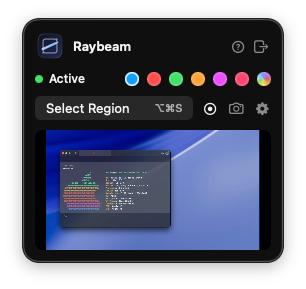
Find it in your Menu Bar

Raybeam menu bar window showing region capture controls
What you get

Quick, precise, accessible screen-sharing.

  • A draggable, resizable region. Share exactly the pixels you want.
  • Perfect for ultra-wide monitors or multi-monitor setups.
  • Hot key support to quickly change the region in an instant.
  • Menu bar access so Raybeam stays out of the way until you need it.
  • Live feed stays in sync with the region you're sharing.
How it works

Share your screen in three simple steps

  1. Define the part of your screen you want to share.
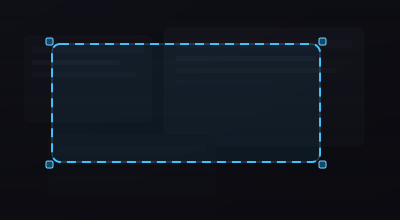
  2. Drag and resize the region anytime. The live stream updates instantly.
  3. Use that view in your video call with the screen-sharing flow you already use.
Preview

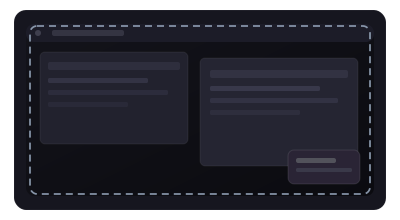
Share any part of your screen

Drag and resize to instantly update the live stream. No need to re-share.

Go further

Privacy & Accessibility

Raybeam includes tools to keep specific applications out of the shared frame, mark up your stream, and drive it from the keyboard.

Keep windows off the stream

Hidden Applications

Choose apps whose windows should never appear inside your rectangle. Their pixels are replaced by whatever sits behind them on the desktop. This is useful for things like personal chats or anything you do not want mirrored.

Annotate the live region

Drawing / Annotation

Turn on draw mode to sketch freehand on top of your capture. Marks are baked into the stream, so everyone on the call sees them.

Illustration of a keyboard shortcut chord: Command, Shift, and R (example defaults for selecting a region), suggesting customizable hotkeys.
Control Raybeam

Hotkeys

Register global hotkeys to pick a new region, toggle draw mode, and stop streaming without opening the menu bar panel.

Compare

Raybeam vs. Traditional Screen Sharing

Most video apps only let you share your whole screen or pick a single window from the system sheet. Raybeam adds a third path: a live rectangle you place anywhere on your desktop.

Permissions

Screen recording

Raybeam needs macOS screen recording access to mirror the region you choose into your call. Only content inside your region is captured. Not your full display unless you make the region that large. You can review or revoke access anytime in System Settings → Privacy & Security → Screen Recording.

Requirements

Runs on your Mac

  • macOS 14 or later
  • Apple Silicon or Intel
  • Menu bar app. Look for Raybeam in the menu bar after launch
Trust

You stay in control

Raybeam is built to share a region you define. Adjust or stop sharing from the menu bar whenever you like.

FAQ

Common questions

Does Raybeam capture my whole screen?

No. By default you share only the rectangular region you set. If you resize that region to cover your entire display, then the full screen is included, but that is always your choice.

Which video apps does it work with?

Raybeam provides the live region on your Mac; you use your meeting app’s normal screen-sharing controls to present it, the same way you would share any window or display. Some video conferencing applications may not support the appropriate type of window picker that is required to function with Raybeam. Generally, desktop versions of video conferencing apps have better support.

Why does macOS ask for screen recording permission?

Apple requires explicit permission for any app that reads pixels from the screen. Raybeam uses that access only to build the region you select for sharing.

Can I move the region while I’m on a call?

Yes. Drag and resize handles update the shared region in real time so you can refine what others see without leaving the call.

Where do I find Raybeam after I install it?

Raybeam lives in the menu bar. Look for its icon near the clock and Wi‑Fi indicators. You open controls from there.